adobe photoshop 5.0 3d basic button creation |
|
|
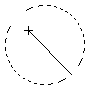
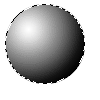
1.) make a 200 x 200 document so you have plenty of room.make a new layer, draw out a circle with the elliptical marqueetool, make the foreground white and background black, now fill from the upper left down to the bottom right with the radial gradient tool like shown to the left. |
|
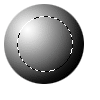
2.) ok deselect the selection and make a smaller circle inside the one you just made. now rotate it 180 degrees (edit > transform > rotate 180) |
|
3.)
contract by 2 pixels (select > modify > contract) then rotate 180 again, don't lose your selection. |
|
4.)
to color your button, go to hue/saturation (image > adjust >hue) check the "colorize" box and drag the saturation level to +70, then adjust the hue for desired color.
|
|
|
are you stuck or having problems? visit the forum to post any thing about photoshop and related questions. 
|
|
|